Viewing Gifts Given
1. From MyCompliance, click on My Requests and select Gifts Given from the drop down menu
2. Select Show Search to narrow down the list, e.g. search for gifts given by employees over a certain Gift Value, search by employee who is giving/has given the gift, i.e. the Provider, or the Requestor who is the user in your firm requesting/has requested that the gift be provided.
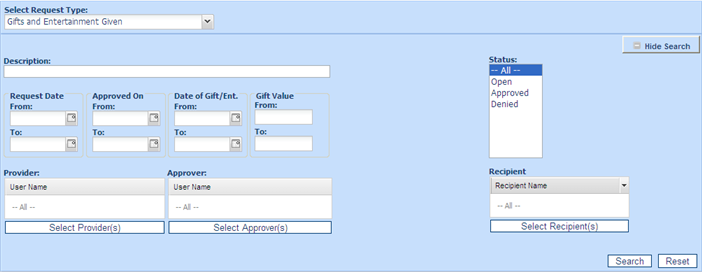
3. Beside the View filters, the following options are displayed:
• All to view all gift given declarations regarding of status.
• Open to view all gift given declarations awaiting approval.
• Approved to view gift given declarations already approved.
• Denied lists those gift given declarations which have been denied.
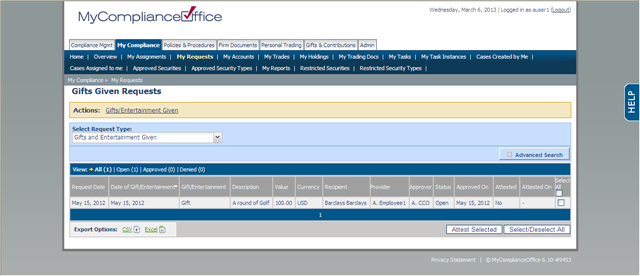
4. Gifts Given are sorted by default in order of Request Date. with the most recent one sorted first. Click any column header to change the default sort:
• Request Date – to sort by the date that the request was submitted.
• Date of Gift/Entertainment - to sort by date that the user entered on the gift form when submitted their request.
• Description - to sort by description of the list (alphabetically).
• Gift Value -to sort by the value or amount of the gift.
• Recipient - the outside interest who has received the gift or entertainment. The recipient can be added to a list by the user making the Gift Given declaration or they can be chosen from a pre-defined list.
• Requestor - the user in your firm requesting/has requested that the gift be provided.
• Provider - the user in your firm giving the gift.
• Approver -the designated approver of gifts/entertainment in the firm.
• Status - the gifts will be Open (awaiting approval), or Approved or Denied by the approver.
• Approved On - the date that the gift was approved or denied.