Answering a Questionnaire
1. To answer a questionnaire contained in an assignment that has been assigned to you, select the assignment from the Assignments list. The View Assignment page is displayed, as shown below.
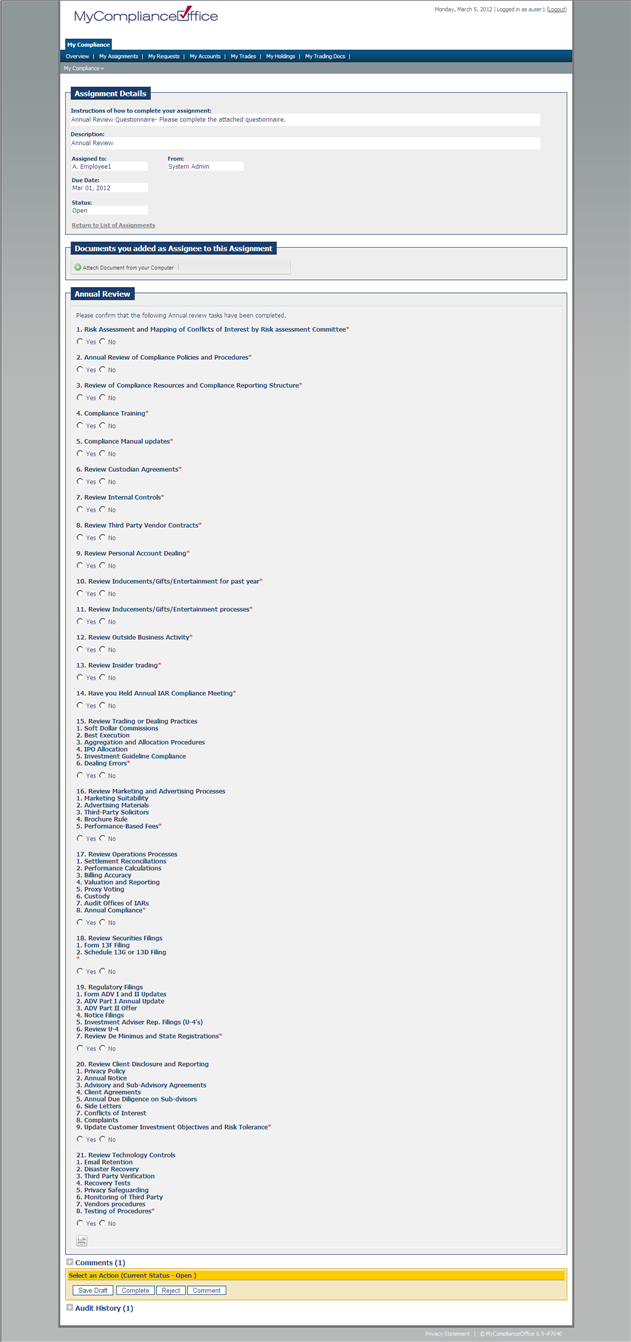
2. The questionnaire is displayed in the section marked by the title given to the questionnaire. In the example, it is “Annual Review Questionnaire”.
3. All rows in the questionnaire are numbered, and those marked by a red star * after the question indicates that the question is mandatory, and an answer must be given to complete the questionnaire successfully.
4. To save your answers to the questionnaire, select the button Save Draft in the Assignment Actions section under Select An Action. This allows a user to edit their answers before completing the assignment.
5. To submit your questionnaire as part of a complete assignment, click on Complete, and enter in a comment. An email will be sent to the Task owner to state that the assignment has been submitted, with a status of Completed. Your answers to the Questionnaire will be displayed in the assignment.
6. Please note that if you wish to add a document to the main part of the assignment; this must be done as a separate step to saving drafts of answers given the questionnaire.
7. If a user wishes to print out their answers to a questionnaire, they can click on the Print icon underneath the questionnaire.
Created with the Personal Edition of HelpNDoc: Generate EPub eBooks with ease